Build a set around one useful theme
A coherent sticker set shares a purpose or visual language. For a reading journal, choose books, bookmarks, a lamp, a mug, a small plant, and a notebook. For a gardening planner, use a watering can, seed packet, pot, gloves, leaf, and flower. The objects differ, but they belong together and can be used on the same page.
Think about where the stickers will go before requesting intricate illustrations. Small planner stickers need a clear silhouette and few details. Larger craft stickers can support more texture. Decide whether they should communicate a task, decorate a scene, or act as visual labels. Trying to do all three often produces a busy set whose purpose is hard to read.
Describe shape, style, and consistency
Name the subjects and explain the visual rules: simple isolated shapes, a consistent palette, clear separation from the background, and no tiny lettering. If words are necessary, inspect every character after generation rather than assuming the text is correct. Generated text can be misspelled, and decorative lettering may become unreadable at sticker size.
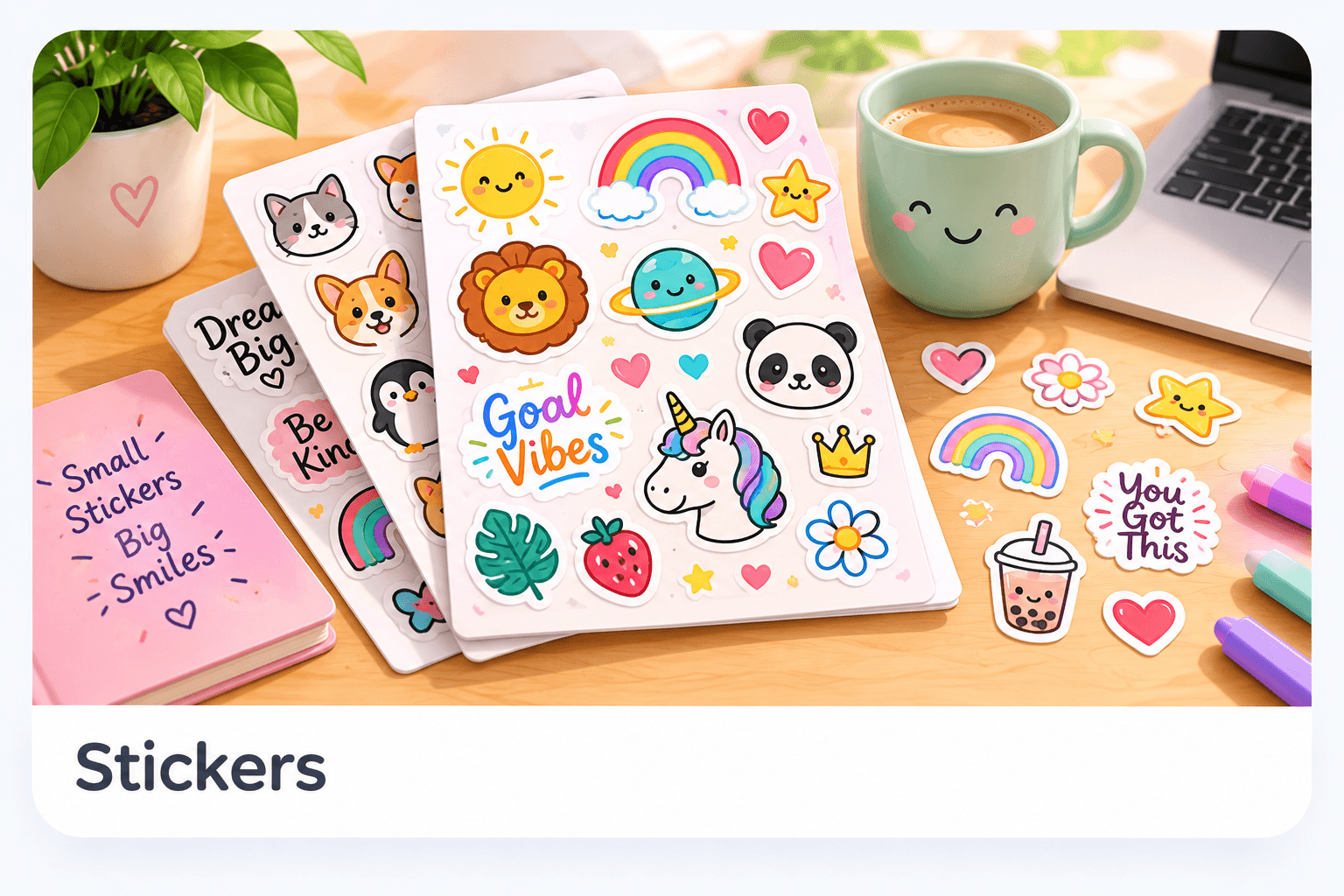
WonderWords currently produces a sheet based on six individual sticker images. A useful brief stays within that scale rather than asking for dozens of unrelated objects. Keep line weight and visual complexity similar across the set. Avoid protected logos or characters unless you have appropriate permission; requesting them does not create a license.
Create and review the sheet
Open the sticker tool, describe the theme, and check its displayed Wonder Credit cost. After generation, review each sticker individually and the arrangement of the sheet. Look for cropped edges, unwanted backgrounds, misshapen objects, and details that disappear when reduced. The sheet preview should be judged at the size you intend to print.
Use the PDF download control once the result is ready. A printable sheet is not the same as a cutter-ready vector file or a supplied cut-line package. The application does not promise automatic compatibility with a particular cutting machine. If you use a cutter, consult its import, registration, and cut-line requirements separately.
- Choose a six-subject theme with a shared style.
- Enter the brief in the sticker generator and review the credit cost.
- Inspect all generated stickers and the sheet layout.
- Download the PDF and print a plain-paper test at the intended size.
Test the paper and scale
Use printable adhesive paper that explicitly matches your printer type. Inkjet and laser media are not interchangeable by default. Follow the paper and printer instructions for loading, media selection, and drying. Before using adhesive stock, print on ordinary paper to check size, spacing, and whether the sheet is clipped.
If exact dimensions matter, compare actual-size and fit-to-page settings carefully. Fit can shrink the entire sheet, while actual size can crop content outside the printer's printable margins. Place the test sheet beside the notebook or planner where the stickers will be used. A design that looks balanced on screen may be too large for the available writing area.
Leave room for comfortable cutting
Keep a small border around each sticker instead of following every tiny protrusion. Smooth outer contours are easier to cut than narrow leaf stems or delicate whiskers. Test one sticker before trimming the whole sheet. If removing the backing damages a thin section, use a simpler contour or a larger version of that design.
For activities involving children, adults should handle tools that require supervision and choose materials appropriate for the setting. Do not infer water resistance, food safety, outdoor durability, or skin-contact suitability from a printed design. Those properties come from the physical materials and their instructions, not from the generated image.
Try three practical sticker projects
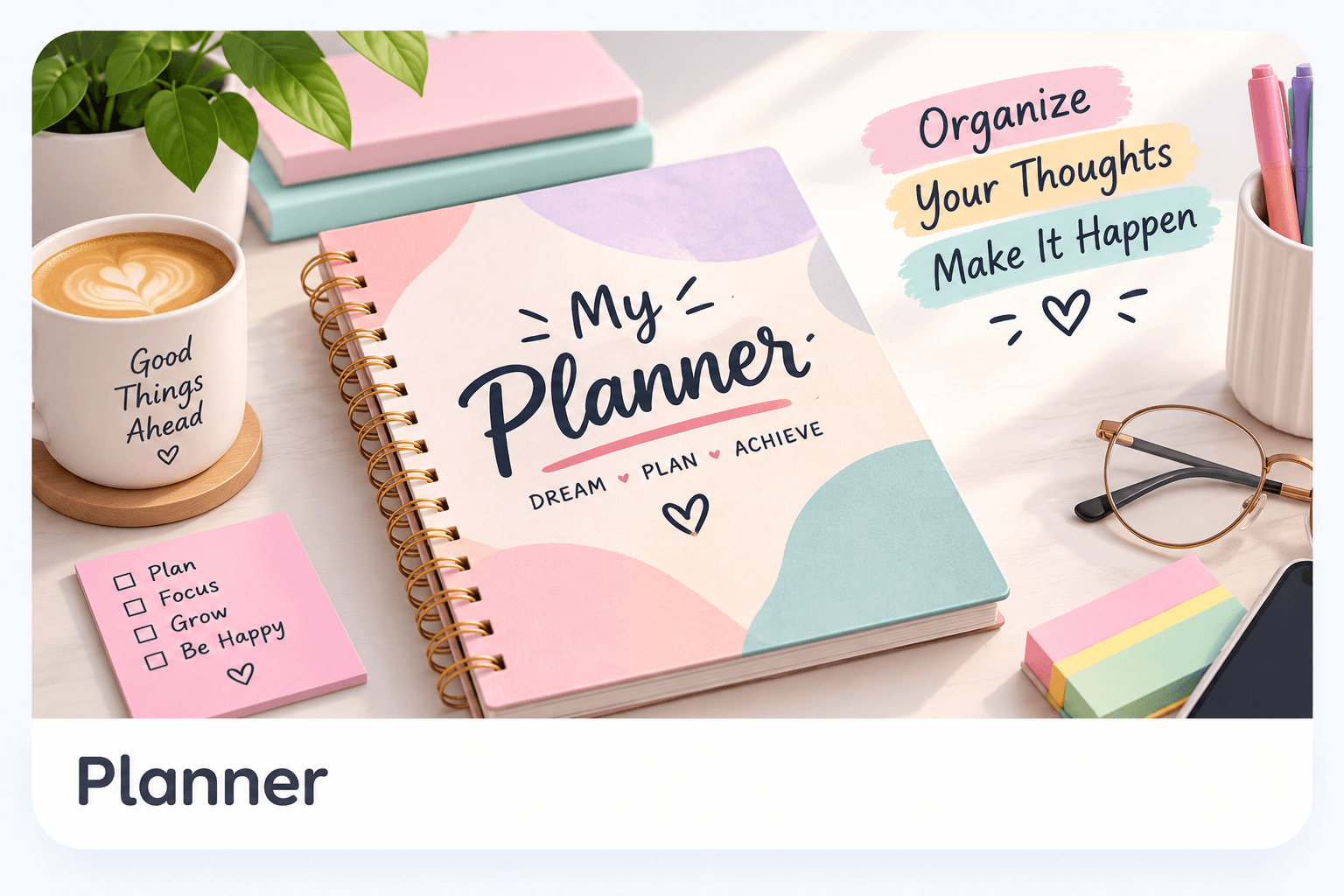
For a planner, use one symbol per task category and leave the written task visible. For a reading journal, add a sticker after recording a book and a short note about it. For a story activity, arrange a few stickers on a page and write a sentence connecting them. Each project gives the sheet a use beyond decoration without requiring a complicated production workflow.
Save the original PDF and note which designs were readable and easy to cut. Use that feedback to simplify your next brief. Before selling or distributing sheets, confirm the content license and the rights to the subjects used. A visually appealing AI-generated set is not automatically an exclusive design or a commercially cleared product.
Need help with a specific tool? Visit Help & FAQ. See the terms draft for the content-license details still awaiting owner approval.