Plan the decisions the page should support
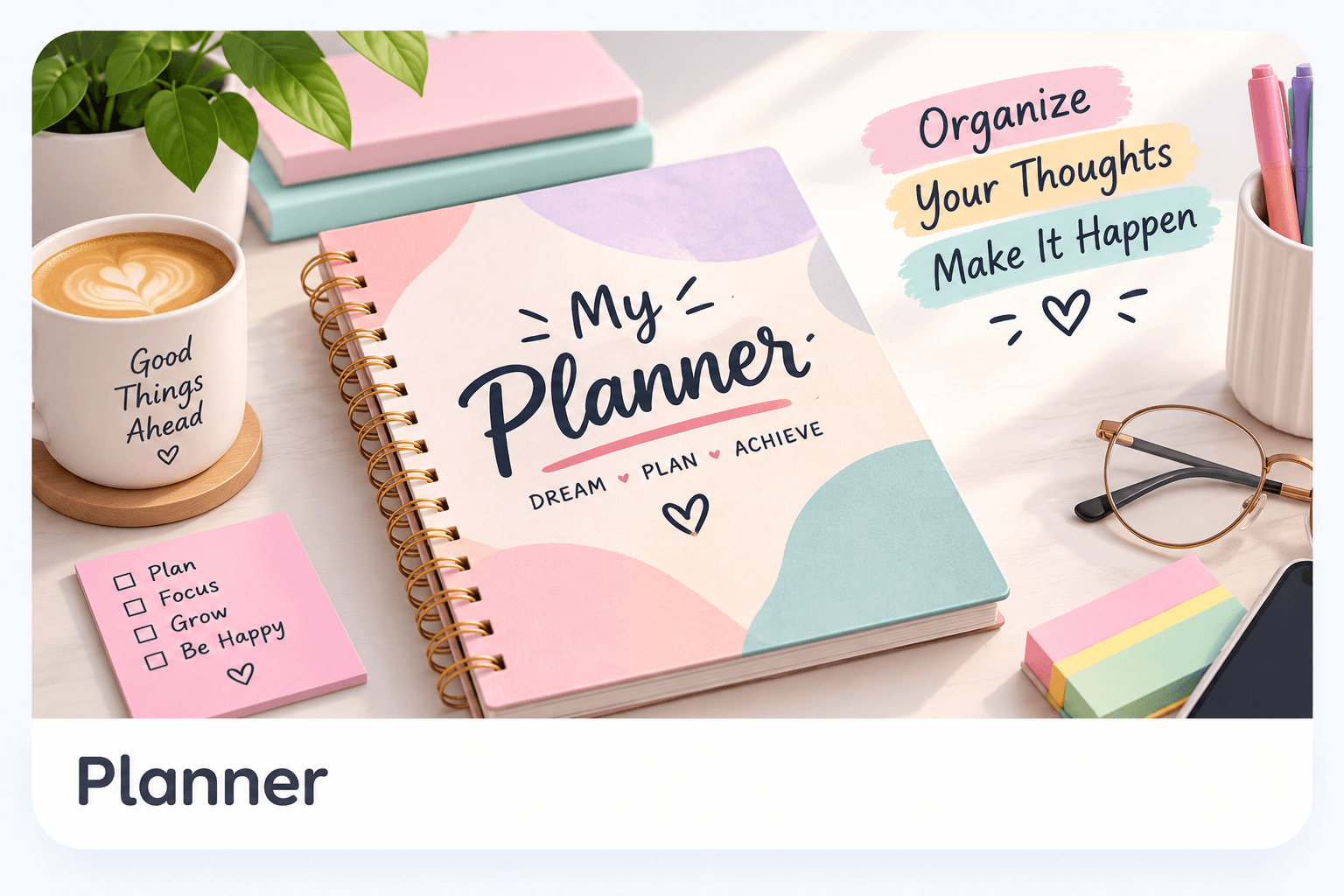
A planner earns its space when it makes a recurring decision easier. Before choosing colors or decorations, ask what you need to notice, decide, or record. A weekly household planner might need appointments, meals, and three priorities. A project planner may need milestones and the next action. Combining both on one sheet can leave too little space for either.
Write down what you already use during a normal week. If you never review a detailed habit chart, adding one does not automatically improve the routine. Start with the few sections you would actually fill in, and leave room for changes. A blank notes area can be more useful than a dozen narrow boxes whose labels do not match your day.
Describe structure before decoration
A precise planner brief explains the time period, sections, and amount of writing space. ‘An undated weekly planner with seven day areas, three weekly priorities, a short notes section, and generous writing lines’ provides much more direction than ‘a beautiful productivity planner.’ Undated pages can be reused; dated layouts need careful checking for calendar errors.
Choose a restrained visual theme that keeps the writing surface readable. Pale decorative accents and dark headings can work well, but large illustrations may consume useful space or ink. If you want a journal, describe the prompts you need rather than asking for an open-ended life plan. Avoid including financial account information or private schedules in a generation prompt.
Use the planner tool and inspect the preview
WonderWords' planner generator creates a structured printable planner from your idea. Enter the brief, use the available settings, and check the displayed credit cost before generating. The preview and PDF are the place to verify how the sections fit together; generation does not guarantee that every custom layout instruction will be followed exactly.
Check whether the main task areas occupy enough space, whether any headings repeat, and whether the generated wording makes sense. A decorative cover does not compensate for cramped daily pages. If the tool produces more sections than you need, make the next brief more specific rather than adding another long list of requirements.
- Open the planner generator and describe one practical routine.
- Check the credit cost and generate a preview.
- Inspect headings, page flow, writing lines, and any dates.
- Download the PDF and print one working page before making several copies.
Check scale with a pen in your hand
Writing space feels different on paper than on a zoomed screen. Print a sample at the intended scale and fill in a realistic appointment, a longer task, and a quick note. If you have to write unusually small, the page needs larger areas or fewer sections. Check margins for hole punching or a binder; the outer edge of the PDF may be too close to the print area for your setup.
Choose paper that suits the pens you use and your printer's supported media. Test whether ink shows through if you print on both sides. Print at actual size when dimensions matter, or use fit-to-page if your printer's unprintable margins would otherwise crop the content. Do not switch scaling options without checking the effect on writing space.
Test the planner for a normal week
Use the first version for an ordinary stretch of time before decorating or printing a large stack. At the end, identify boxes that stayed empty and areas that overflowed. Those observations are specific design feedback. An unused section can be removed; a crowded priority list may need fewer entries or a separate notes page.
Try one small revision at a time so you can tell what helped. You might shorten a heading, replace a habit grid with a check-in question, or separate personal tasks from appointments. Printable planning is flexible precisely because you can iterate on the structure. A page is a tool for your routine, not a promise of productivity or wellbeing.
Keep the template easy to find
Save the downloaded PDF with its purpose and version in the filename, such as ‘weekly-garden-planner-v2’. Keep the prompt beside it if you plan to generate another version. The application can restore some previews in browser storage, but a browser preview is not a reliable long-term archive and can disappear when storage is cleared.
If you add stickers or decorative pages, leave functional labels and writing space unobstructed. Before distributing a template to a group or selling it, check the approved license and review any included images or quotations. The generator produces a printable starting point; decisions about suitability, rights, and a workable layout remain with the person using it.
Need help with a specific tool? Visit Help & FAQ. See the terms draft for the content-license details still awaiting owner approval.