Start with a small, coherent book
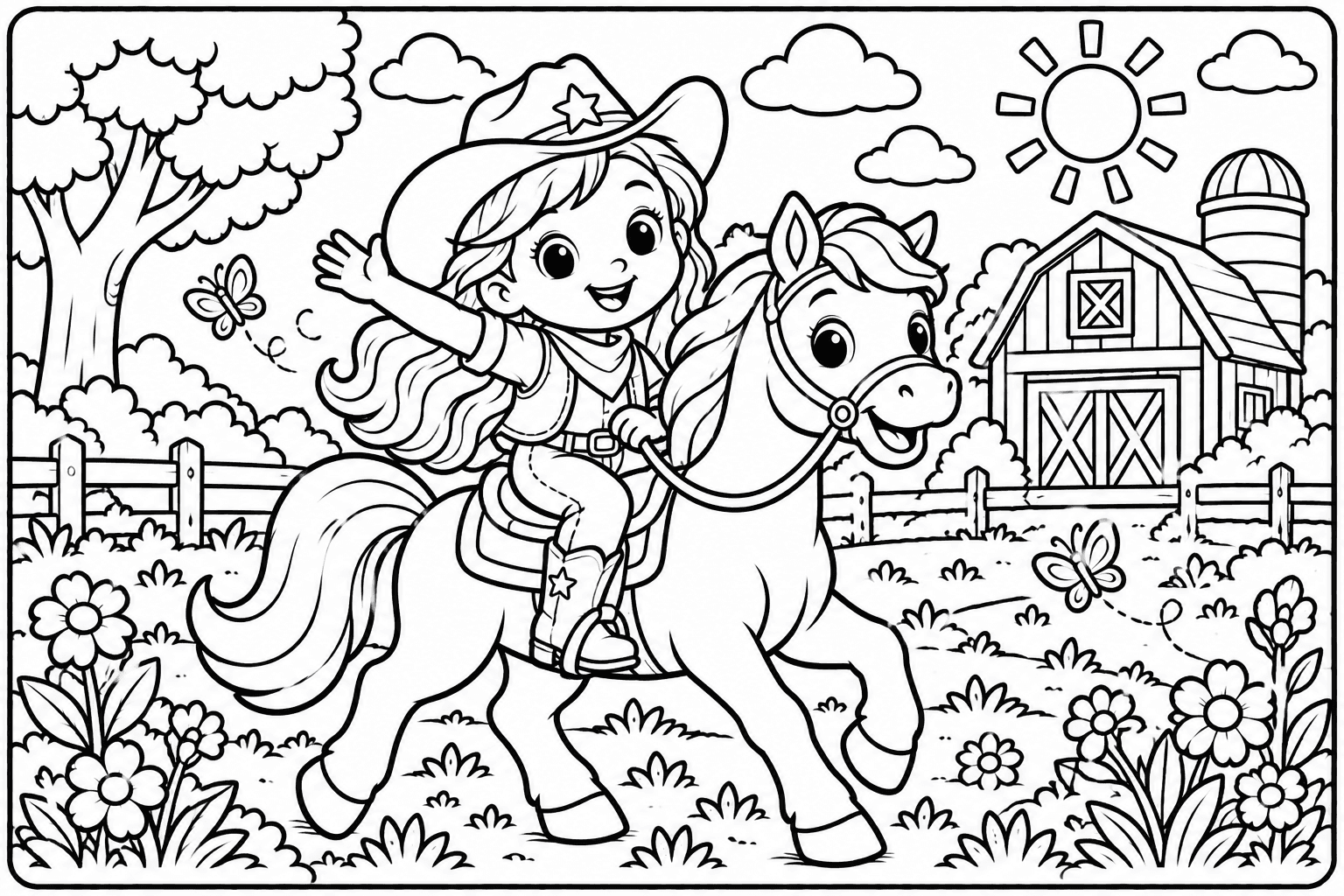
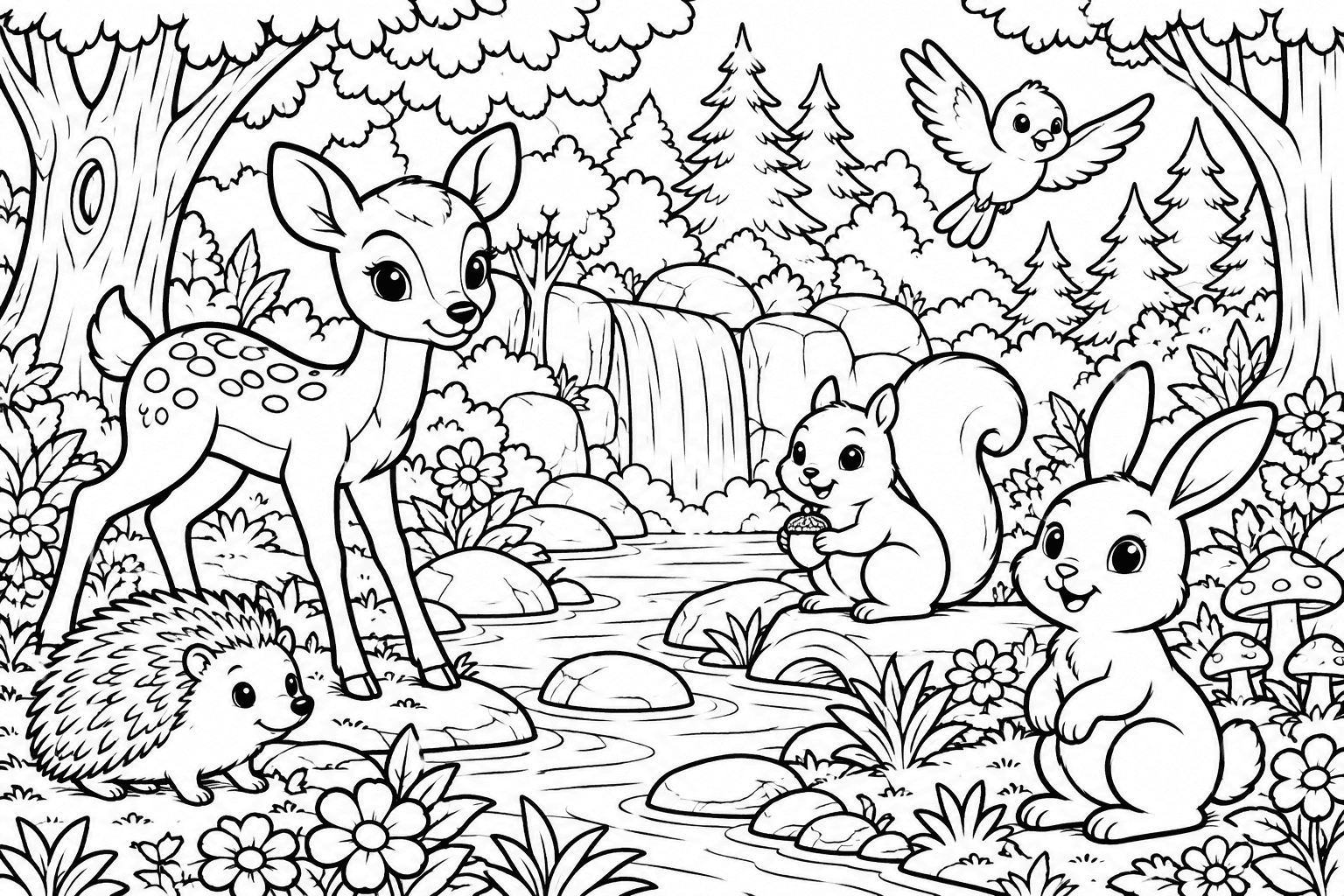
A useful coloring book has a clear purpose before it has a clever prompt. Decide who will use it, what they will color, and whether the pages belong to one story or simply share a theme. A short forest adventure might move from a woodland path to a stream, then a clearing. That gives each page a distinct scene without introducing a new world every time.
Choose the complexity to suit the person holding the pencil. Large shapes with clear outlines are easier to finish than densely packed leaves, tiny windows, or overlapping animals. Detailed pages can suit someone who wants a longer project, but more detail is not automatically better. Begin with a small page count so you can inspect the approach before spending credits on a larger book.
Describe the drawing, not just the topic
A prompt such as ‘animals’ leaves the generator to decide almost everything. A more useful brief identifies the setting, main character, action, and visual constraints. For example: ‘A friendly rabbit explores a vegetable garden. Each scene has one main action, large coloring areas, clean black outlines, a white background, and little background clutter.’ This is an example brief, not a guarantee of the output.
Separate the story requirement from the image requirement. You may want a simple sentence about finding a carrot, while the drawing needs the rabbit, a basket, and a few broad leaves. Avoid demanding tiny labels inside the illustration: generated lettering can be unreliable. If a character repeats, describe its recognizable traits consistently. Do not use a child's full name, school, address, or private details to make the project feel personal.
Create the book in WonderWords
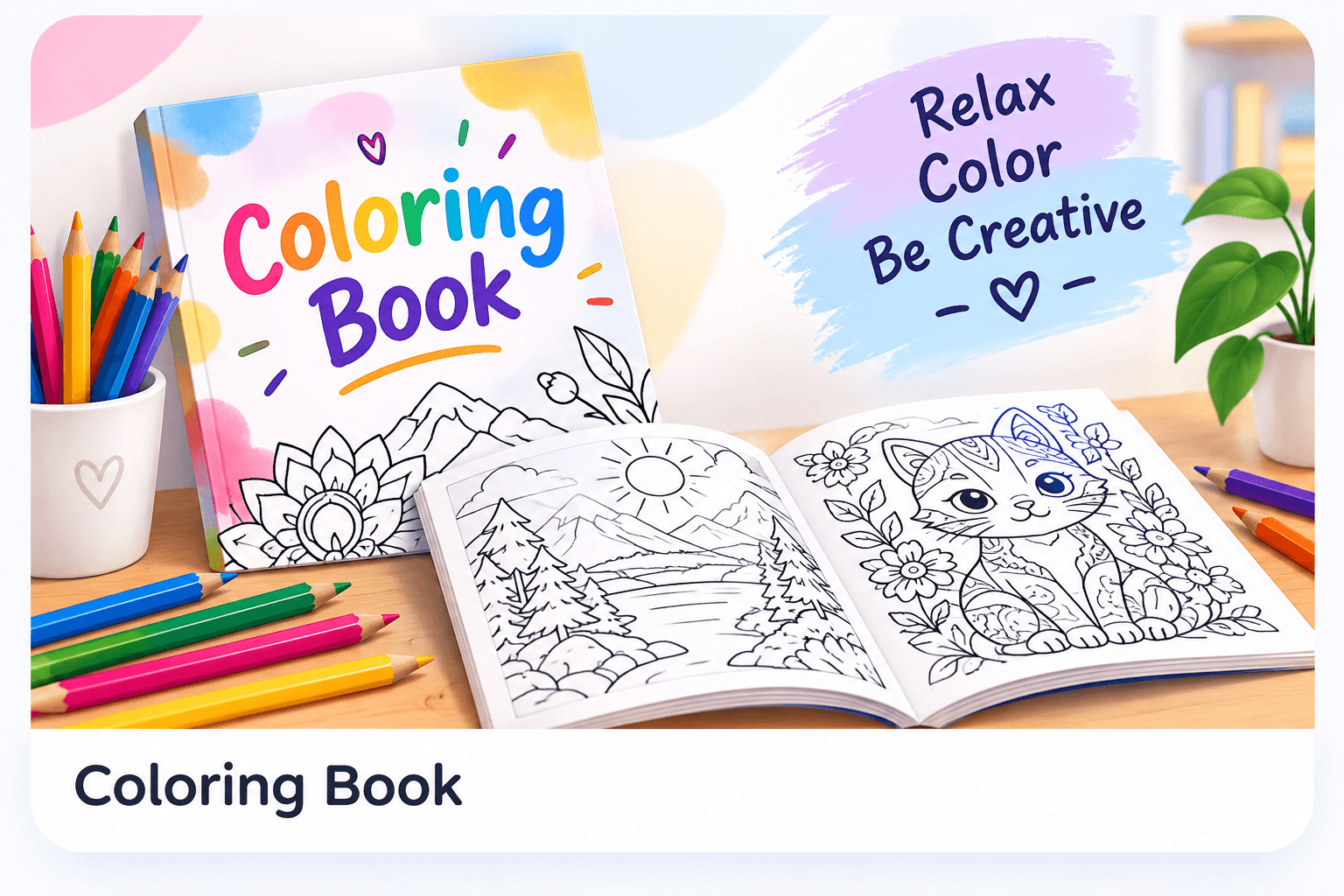
WonderWords' coloring-book tool combines story text with black-and-white illustrations and a PDF download. Use the actual controls displayed in the tool; available options and allowances can change. AI generation uses Wonder Credits, so read the displayed cost before you submit. Registering an account is separate from having credits available.
Wait for the current request to finish or show an error before starting another. Repeated submissions can create unnecessary requests and make it harder to tell which result you are reviewing. Generation depends on network access and provider availability, and a particular completion time is not promised.
- Open the coloring-book generator and sign in if prompted.
- Enter the brief, choose the available settings and page count, and check the credit cost.
- Generate, then review every page in the preview rather than only the first illustration.
- Use the PDF download control after the result is available.
Inspect line art before you print
Zoom into eyes, hands, wheels, and small neighboring shapes. Look for unintended overlaps, gray areas, duplicate limbs, and lines that stop before joining another outline. A page can look attractive as a thumbnail yet become frustrating to fill digitally or difficult to color on paper. Check story spelling and whether the wording matches the scene.
For digital coloring, a tiny break in an outline may connect the inside of a shape with the background. WonderStudio has internal gap handling, but a large opening remains ambiguous. Try a small fill in a clearly enclosed region first. If a face or cloud shares color with the sky, undo and use a brush around the opening. Do not rely on automatic repair to infer every intended boundary.
Print a test page, then the full book
Open the downloaded PDF and check its page dimensions, margins, and orientation. Print one page at the intended size. Make sure the lines remain visible and nothing is clipped near the edge. ‘Fit’ may shrink a page to accommodate your printer's margins; ‘Actual size’ preserves dimensions but can clip an oversized design. Choose deliberately after the test.
Store the original PDF separately from your colored versions. If you open the PDF in WonderStudio, it renders page by page and keeps edits during the current session. Its PNG download saves the current colored page; it is not an editable project backup or an automatic colored multipage PDF export.
Share carefully and keep what works
Review suitability before sharing a book with children or a class. AI-generated content still needs human judgment; a friendly prompt is not a safety review. Use subjects you are authorized to use and avoid assuming that a generated image provides exclusive or commercially cleared rights. Check the applicable approved license before selling or redistributing it.
Keep the brief that produced a useful structure and note the changes you would make next time: fewer background details, larger flowers, shorter sentences, or a smaller book. Those specific observations are more effective than adding ‘better quality’ to the next prompt. The goal is a book that people can comfortably use, not a large file filled with unreviewed pages.
Need help with a specific tool? Visit Help & FAQ. See the terms draft for the content-license details still awaiting owner approval.